Job Execution (with Slurm)
Important: You must not run computationally intensive multi-core jobs on the Head/Storage Node. Please ensure your activity remains unobtrusive to other users.
Parallel job execution on Compute Nodes of mc2 is mediated and scheduled by Slurm, an open source cluster management and job scheduling system. Unrestrained access to compute nodes (e.g. via SSH) is forbidden, unless you have a job already running. In broad terms, users have to submit a script to Slurm containing a sequence of instructions, including a request for a list of resources (CPUs, memory, time) required to execute a particular application.
Slurm will then weight, hold, authorize and trigger execution based on a multitude of factors, such as how much CPU-time has the user been spending, how much compute power (and respective priority) is being requested by other users, among many other factors.
Key tasks of Slurm include:
-
Understanding what resources are available on the cluster (compute nodes, CPUs, memory, etc.);
-
Queuing and allocating jobs to run on compute nodes based on the resources available and the resources specified in the job script;
-
Monitoring and reporting the status of jobs.
Definitions within Slurm:
-
BaseBoard: Physical platform sustainig storage, memory, processing, networking and accelerating components of a compute node;
-
Socket/Processor/Core: See Figure below.
-
CPU: Within Slurm, a CPU is a logical processing unit, either a core or a thread. Hyperthreading is disabled in mc2, i.e., we always have one thread per core, meaning that no more that one task should be bound to each core.
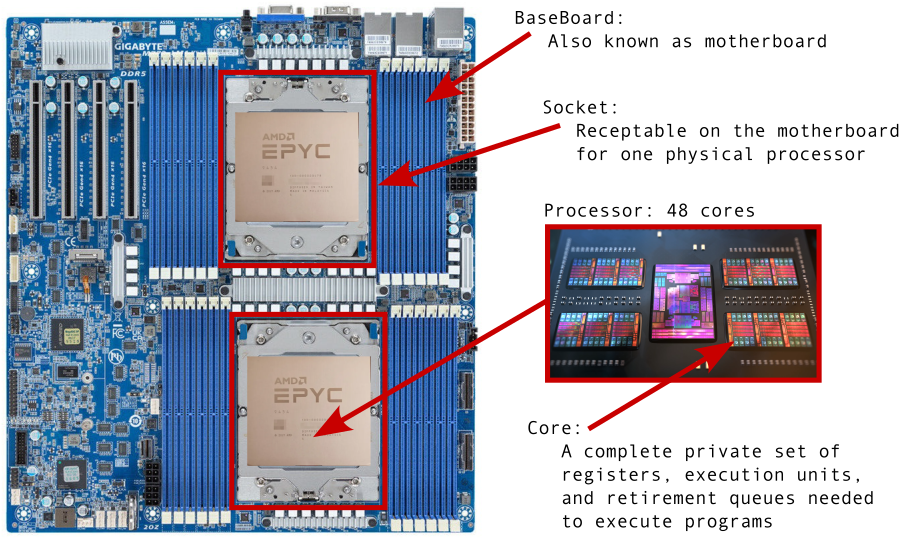
Figure: Physical components within a Node: BaseBoard, Socket, Processor.
Slurm script template (with comments)
A Slurm batch script contains options preceded with #SBATCH before any
executable commands. Slurm will stop processing further
#SBATCH directives once the first non-comment non-whitespace line has
been reached in the script.
Among the Slurm directives we highlight:
| Directive | Resources requested |
|---|---|
--nodes |
Number of nodes |
--sockets-per-node |
Number of sockets per node |
--cores-per-socket |
Number of cores per socket |
--ntasks-per-core |
Number of tasks per core |
--ntasks |
Number of MPI or OMP tasks |
--cpus-per-task |
Number of cores per MPI/OMP task |
--distribution |
How tasks are distributed over nodes:sockets |
--mem |
Amount of memory in MiB |
--mem-per-cpu |
Amount of memory/CPU in MiB |
--time |
Amount of time for resource usage |
A Slurm script should take care of at least the following:
-
Request a certain number of CPUs. Here a CPU stands for a processing unit. It can be a compute core or a thread (although hyperthreating is deactivated);
-
Bind the CPUs into groups of MPI/OMP computational tasks. By default, Slurm will bind one CPU to each task;
-
Request a certain amount of memory. By default, whole node allocations (using
--nodesdirective) will reserve the whole memory available on each node. On the other hand, individual CPU requestes will reserve a certain amount of memory per CPU (set by default to 2507 MiB/core) -
Request an amount of time during which the above resources will be reserved, and forcibly released when elapsed. This is currently limited to 3 days.
-
Setup an environment that allows for the execution of the binary.
In order to achieve the above, we allocate a certain number of cores per socket, sockets per node and nodes. The resulting number of cores is then mapped into a group of tasks. By default, the system assigns a single task per core. Hyperthreading is disabled in mc2, so the number of tasks bound to each each core (CPU) cannot be greater that 1.
The default (and maximum) amount of memory per node for compute work is about 235 GiB. Nearly 16 GiB/node are reserved for the operating system.
Below is an annotated template of a Slurm batch file named slurm.sh,
which allocates 2 nodes, with 2 sockets each, and 45 cores per socket. This
means a total of 2x2x45=180 cores. It also assigns one parallel task per core,
allowing us to run 180 MPI (or OMP) tasks:
#!/bin/bash

# Slurm directives
#SBATCH --job-name=my_job_name          # Job name
#SBATCH --time=0-01:00:00               # Wall time limit (d-hh:mm:ss)
#SBATCH --ntasks-per-core=1             # Bind each MPI/OMP task to one core
#SBATCH --cores-per-socket=48           # Number of cores per socket
#SBATCH --sockets-per-node=2            # Number of sockets per node
#SBATCH --nodes=2                       # How many compute nodes
#SBATCH --distribution=block:block      # Block-wise distribution of tasks
#SBATCH --mail-type=END,FAIL            # Send email upon termination/failure
#SBATCH --mail-user=your@email.com      # Email address

# With the above, the total number of CPUs requested is:
# CPU_tot = nodes * sockets-per-node * cores-per-socket *
#           ntasks-per-core * cpus-per-tas = 2 * 2 * 48 * 1 * 1 = 192

# Prepare environment:
# Clear all lingering modules before loading the module of interest
module purge
module load mymodule

# Execute application
mpirun /path/to/a.out > std.out

# Gracious script termination
exit 0
Since the number of tasks per core is 1 by default, a practical and leaner version of the above script would look like:
#!/bin/bash

# Slurm directives
#SBATCH --job-name=myjob
#SBATCH --time=0-01:00:00
#SBATCH --ntasks-per-core=1
#SBATCH --cores-per-socket=48
#SBATCH --sockets-per-node=2
#SBATCH --nodes=2
#SBATCH --distribution=block:block

# Prepare environment
module purge
module load mymodule

# Execute application
mpirun /path/to/a.out > std.out

# Gracious script termination
exit 0
We can however, allocate the resources (cores and memory) by solely specifying the number of MPI/OMP tasks and memory required. By default, each task assignment will correspond to one requested core.
For instance, the following Slurm script informs Slurm that one needs to run 16 MPI/OMP tasks. It binds one CPU (core) to each task, requests a default amount of memory per core (2507 MiB/core), and all that will be reserved for 3 days.
#!/bin/bash

# Slurm directives
#SBATCH --job-name=myjob
#SBATCH --time=3-00:00:00
#SBATCH --ntasks=16
#SBATCH --cpus-per-task=1   # This is the default (not strictly necessary)

# Prepare environment
module purge
module load mymodule

# Execute application
mpirun /path/to/a.out > std.out

# Gracious script termination
exit 0
Should you want to use a different amount of memory,
either use --mem or --mem-per-cpu directives to set an amount in MiB units.
Using --mem=0 will
reserve the whole memory available in the nodes. You can also
use the --exclusive directive to avoid sharing node resources with other jobs
(including with other users).
Parallel based on MPI
Both Intel MPI and OpenMPI support two modes of launching parallel jobs under Slurm:
- Using a full-featured
mpirunlauncher. - Using Slurm's direct launch capability with
srun.
Although the OpenMPI team recommends using mpirun, unless there is a
strong reason, you should always launch your MPI executables under Slurm jobs
using srun. With that you will make sure that the Slurm system will perform
allocation, log recording, accouning, and cleaning up tasks in a streamline
fashion.
Running with srun
You can launch parallel jobs using the Slurm's native srun command.
Here is a simple (but wasteful) batch script for running
on two cores from different sockets:
#!/bin/bash
#SBATCH --nodes=1
#SBATCH --sockets-per-node=2
#SBATCH --cores-per-socket=1
#SBATCH --distribution=block:block
module purge
module load intel
srun --mpi=pmi2 /path/to/the/executable.x
Important: mc2 uses PMIx process management interface library by default. Its role is to simplify and accelerate how computing resources are gathered, tasks are started, managed, and monitored. OpenMPI was compiled agains PMIx and if this is your chosen flavor of MPI, you don't have to worry about how the PMI library is called. However, Intel MPI does not go well with PMIx and instead, it relies on PMI2. For that reason, should you want to use Intel MPI, you must pass the --mpi=pmi2 option to the rsun command:
srun --mpi=pmi2 /path/to/the/executable.x
Running with mpirun
When mpirun is launched within a Slurm script, it will automatically utilize
the Slurm infrastructure for launching and controlling the individual MPI
processes. Hence, it is unnecessary to specify the --hostfile, --host,
or -n options to mpirun. Below is an example of a Slurm script:
#!/bin/bash
#SBATCH --nodes=2
#SBATCH --sockets-per-node=2
#SBATCH --cores-per-socket=1
#SBATCH --distribution=block:block
module purge
module load foss
mpirun /path/to/the/executable.x
Running interactive jobs
Interactive jobs can be used to launch a Bash shell session on a compute node. For instance,
user@hsn:~$ srun --ntasks=1 --pty bash -i
user@cn1:~$
will reserve a single core on the first available node and launch Bash with the user's environment.
Perhaps the most simple way to get into a compute node is to first make a reservation, and then SSHing into it:
user@hsn:~$ salloc --ntasks=4 --time=1:00:00
salloc: Granted job allocation 214
salloc: Nodes cn1 are ready for job
user@hsn:~$ ssh cn1
user@cn1:~$
Alternatively, you may allocate your resources first, launching an interactive
Slurm job, and then use the mpirun command to execute
your parallel program.
Below we have a job with a total of two processes, using one core per node
(ppr:1:node):
user@hsn:~$ srun --nodelist=cn1,cn2 --pty bash -i
user@cn1:~$ module purge
user@cn1:~$ module load foss
user@cn1:~$ mpirun --display-map --display-allocation --host cn1,cn2 --map-by ppr:1:node /path/to/the/executable.x | tee std.out
You cannot use mpirun from the Head Node without prior allocation by Slurm
(that will be blocked by the PAM setup).
Creating and using scratch spaces
When running jobs, compute nodes can read and write user data from their home spaces on the head node through the network. These are relatively slow I/O operations. However, compute nodes possess local NVMe volumes which can be used for fast scratch I/O.
A dedicated scratch directory can be created within a Slurm job, using the following directive:
#SBATCH --constraint=scratch
The above #SBATCH directive turns on the scratch feature, and prepares a dedicated directory
/scratch/$SLURM_JOB_ID on the NVMe local disk with read/write permissions for the
user. Importantly, this directory exists only on the node that is running
the job. The variable SLURM_JOB_ID is defined within the realm of each job,
and stores its ID serial number.
For your convenience, Slurm also creates a variable SLURM_SCRATCH_DIR which
points to /scratch/$SLURM_JOB_ID, and it is available within the
batch script environment.
Scratch spaces are visible at /scratch in the Head Node. This
directory merges all scratch spaces stored on all Compute Nodes, and
there is no way to resolve the specific node location from the Head Node.
Note 1: If you write data into
/scratchdirectly from the Head/Storage Node, you will not know on which node it is being stored. This means that such action cannot guarantee that it will be accessible to your executable. Instead, all operations involved in the preparation of input files located in/scratch, must be carried out programmatically within the Slurm batch script.Note 2: Scratch spaces are ephemeral - files outside a running window within the last 15 days (until the present date) will be removed. Files with future dates are also removed of course. You should therefore move them from
/scratchto your home space when the job is finished.Note 3: You cannot submit jobs with more than one node in combination with the scratch feature - Slurm will discard such job.
Let us consider the following script as a reference to the workings of scratch spaces. It offers a solution to several use-cases, and it can be adapted to suit your needs.
#!/bin/bash

# Slurm directives
#SBATCH --job-name=vasp
#SBATCH --time=0-01:00:00
#SBATCH --nodes=1
#SBATCH --sockets-per-node=2
#SBATCH --cores-per-socket=48
#SBATCH --constraint=scratch  # Create /scratch/$SLURM_JOB_ID directory

# Make sure that we don't have undefined/empty variables. If for
# some reason `SLURM_SCRATCH_DIR` is empty, you could end up
# copying the whole operating system into your home space!
set -u

# Prepare environment
module purge
module load mymodule

# Take note of the scratch space directory (useful). This will be
# stored in the file "slurm-<jobID>.out"
echo "Using scratch space: $SLURM_SCRATCH_DIR at $SLURM_JOB_NODELIST"

# Copy user/input files to scratch space.
# The variable SLURM_SUBMIT_DIR points to the directory from where this
# batch script has been submitted. Do not forget the "trailing slash"
# at the end of the source path if you use rsync.
rsync -aAXH $SLURM_SUBMIT_DIR/ $SLURM_SCRATCH_DIR

# Run the executable on the scratch space. This is a local path within
# the node where the job is running.
cd $SLURM_SCRATCH_DIR
mpirun myexec > std.out

# Copy created/changed files (using rsync) from the scratch space to
# the original submission directory under your home.
rsync -aAXH $SLURM_SCRATCH_DIR/ $SLURM_SUBMIT_DIR

# Gracious termination
exit 0
We first write the location of the scratch data to the file slurm-<jobid>.out
so that we know where to look for should the job hang, die before finishing,
or for troubleshooting in general.
Next we copy files from the job submission directory (where the Slurm batch
script is located) into the scratch space using the rsync command (the
cp command could have been used instead). Btw, if you use rsync, do not
forget that trailing slash at the end of the source directory.
The next step is to jump into the scratch directory and run the executable.
Since scratch files live up to 15 days only, we should copy all output,
including files that were changed/created during the job, back to our home
space. Again, we use rsync for that.
You may optionally clean up your data from SLURM_SCRATCH_DIR, either
within the script, or on the terminal shell (safer).