Authentication
Steps for first time access
Access to the command shell of mini compute cluster is only available via SSH key authentication (see here for details about SSH key based authentication). On the other hand, access to JupyterHub is made via two-factor authentication with a password followed by a six-digit time-based one-time passcode (OTP).
First-time access to mc2 involves execution of the following tasks (sequentially):
- Generate and install SSH keys on the computer from which you want to access mc2;
-
Request SSH key registration by sending your public key to your supervisor via email, along with some basic info which will allow us to verify your identity:
- Full name
- Email address
- Username (case sensitive, start with a letter, followed by letters, numbers, "-", "_", or ".")
You will receive a confirmation that your key has been registered in the system;
-
Make your first login to mc2 via SSH and setup a strong password.
-
Should you want to use JupyterHub, register an OTP generating device to provide you with One-Time Passcodes.
Below you will find detailed instructions for each of the these steps.
1. Generating and installing SSH keys
Here is how it works. You generate a public key and a matching private key. They are stored in separate files. The private key file acts as a password and should be kept safe. With that I mean:
The private key belongs to the client machine (your laptop or personal computer), it should not be duplicated/copied, and under no circumstances should leave from there. You may however own several key pairs, one pair for each client machine.
Conversely, the public key (which acts as a lock), should be copied to the target system that you want to connect to. The administrator of the target server will place your public key on a special location, so that when you try to log in, the keys are verified against each other, and if they match, access is granted.
mc2 accepts Ed25519 keys. They are an EdDSA implementation using the Twisted Edwards curve (elliptic curve cryptography) that offers higher security with faster performance compared to DSA or ECDSA.
To generate a SSH key pair, first make sure that you have a .ssh
folder in your home space:
user@client:~$ stat ~/.ssh
If the result is something like stat: cannot stat '~/.ssh': No such file or directory,
you have to create the .ssh folder:
user@client:~$ mkdir ~/.ssh
Then use the command below to create your keys. You may replace
user@mylaptop and id_ed25519_mylaptop with more suitable
alternatives (see below for further details):
[user@client]$ ssh-keygen -t ed25519 -f $HOME/.ssh/id_ed25519 -C "user@mylaptop"
Generating public/private ed25519 key pair.
Enter passphrase (empty for no passphrase): [hit Enter key]
Enter same passphrase again: [hit Enter key again]
Your identification has been saved in id_ed25519
Your public key has been saved in id_ed25519.pub
The key fingerprint is:
SHA256:jg2xD3gCTrHtfuIEZncc29UmPwHHm88MOIsco/RTfQg user@mylaptop
The key's randomart image is:
+--[ED25519 256]--+
|  .       ...    |
|   +      E+.    |
|  + . o   o+++   |
| o o o.*o.++*..  |
|  = =.O+S= oo*   |
| o + +.B= .  .+  |
|    + o +.       |
|   o o           |
|    .            |
+----[SHA256]-----+
Importantly, we should press Enter (twice) when a passphrase is asked, effectively making our login passwordless.
The comment in the command line "user@mylaptop",
is simply an identifying label which will help you and the person responsible for
the server to find the owner (user) and computer (mylaptop) to
which the key belongs.
According to the above, your private (id_ed25519) and public
(id_ed25519.pub) keys are saved in the ~/.ssh folder.
This is also the default location
where your SSH client will look for a private key when trying to connect to a
remote server like mc2. If the folder is not found, the keys will be saved
on your home space. You can also change the name of the keys to best
suit your linkings.
Finish by securing your SSH folder and keys:
user@client:~$ chmod 700 ~/.ssh
user@client:~$ chmod 600 ~/.ssh/id_ed25519
user@client:~$ chmod 644 ~/.ssh/id_ed25519.pub
user@client:~$ chown -R $USER:$USER ~/.ssh
1.1. Key generation for Windows Powershell users
An authentication key pair can also be generated on Windows machines.
Windows added the OpenSSH client to Windows 10 several years ago.
You can use PowerShell to ssh to mc2.
Open a PowerShell Window. Then enter into the .ssh folder in your home space
(create that directory if necessary),
C:\> cd $home\.ssh
Execute the following command as the user you plan to use for connecting to mc2.
C:\> ssh-keygen -t ed25519 -f $HOME\.ssh\id_ed25519 -C "user@mylaptop"
Like in a linux OS, hit the Enter key twice to avoid having to type a password during authentication.
Finally, secure your .ssh folder:
C:\> icacls $HOME\.ssh /inheritance:r
C:\> icacls $HOME\.ssh:r "$($env:USERNAME):(OI)(CI)F"
C:\> icacls $HOME\.ssh: /remove "Users"
C:\> icacls $HOME\.ssh: /remove "Authenticated Users"
C:\> icacls $HOME\.ssh: /remove "Everyone"
And secure your private key:
C:\> icacls $HOME\.ssh\id_ed25519 /inheritance:r
C:\> icacls $HOME\.ssh\id_ed25519 /grant:r "$($env:USERNAME):R"
C:\> icacls $HOME\.ssh\id_ed25519 /grant:r "SYSTEM:R"
Your public key is stored by default in
C:\Users\<username>\.ssh\id_ed25519.pub. Provide this key when requesting
access to mc2.
1.2. Key generation for Windows PuTTY users
Install PuTTY client (download the software from the official PuTTY web page).
Launch the application PuTTYgen and in the key Parameters area select the EdDSA, ensuring that the Curve to use for generating this key is Ed25519 (255 bits).
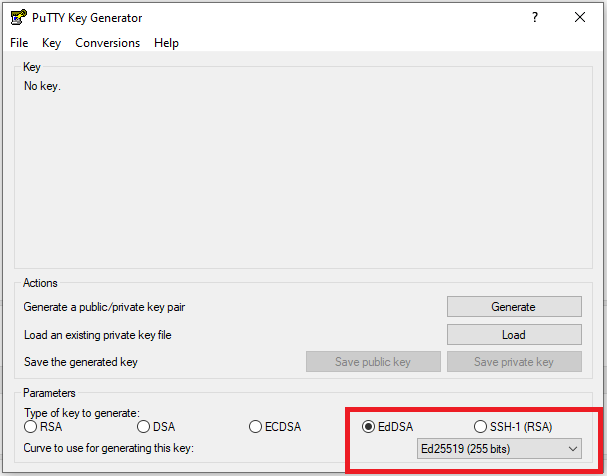
Click on the Generate button to generate your SSH key pair and move your mouse in the empty area of the window to provide some randomness to the generation process.
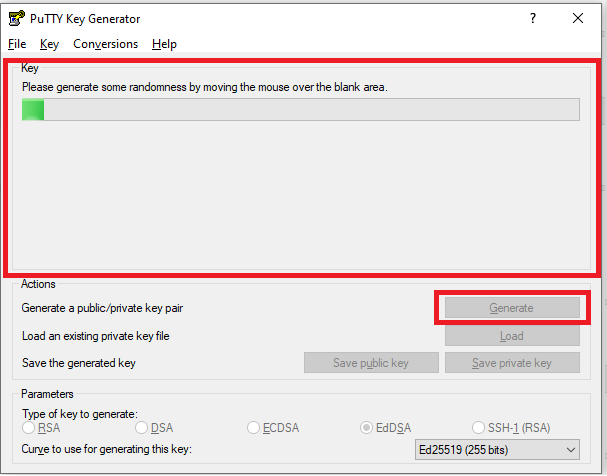
Save the public and private keys in a secure location:
- PuTTY private key -
C:\Users\<username>\.ssh\id_ed25519_mylaptop.ppk - PuTTY public key -
C:\Users\<username>\.ssh\id_ed25519_mylaptop.puttypub
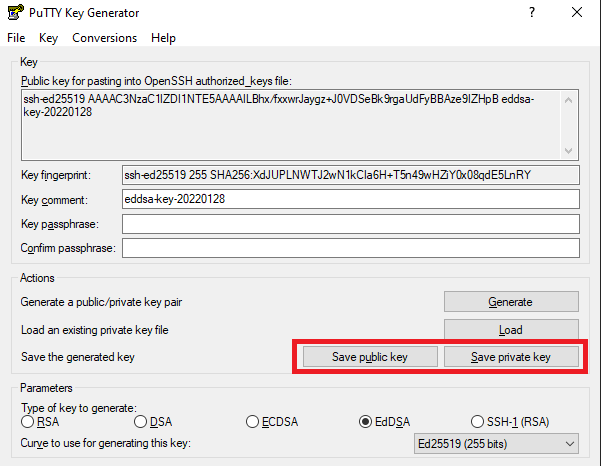
So far, we were able to create SSH keys in native PuTTY format. However, since the SSH service of mc2 is based on OpenSSH, the public key must be converted to OpenSSH format.
Copy the text in the upper box labelled "Public key for pasting into
OpenSSH authorized_keys file", paste it into an empty text file, and
save it as id_ed25519.pub next to the other two keys:
- OpenSSH public key -
C:\Users\<username>\.ssh\id_ed25519.pub
The id_ed25519.pub
file is your public key in OpenSSH format. Provide this key when requesting
access to mc2 (and never send the private key).
Mind that the above only describes how to setup a pair of keys. You should now move to step 2 to (request the registration of the keys).
After having the keys registered in mini compute cluster, you will have to
setup a PuTTY connection to mc2.ua.pt using those keys (step 3).
2. Request SSH key registration
If you are setting up your account for the first time, you should request
the registration of your SSH keys. Attach
your public key (id_ed25519.pub file) to an email and send it off to your
supervisor along with:
- Full name
- Email address
- Username
You will be contacted when your key is registered. This will be a human-contact, and will allow us to confirm your identity.
3. Login to mc2 and setup a strong password
Proceed as indicated below, only after receiving an indication that your keys have been registered.
If you are a Linux/macOS/Powershell user, you simply have to open a terminal window and type:
user@client:~$ ssh <username>@mc2.ua.pt
where <username> is your chosen user name on mc2.
Upon you first connection, you will be asked whether you trust and want to continue with the connection (your SSH client does not recognize mc2.ua.pt as a trusted server yet):
The authenticity of host 'mc2.ua.pt (193.137.172.90)' can't be established.
ED25519 key fingerprint is SHA256:JF6i+Egj7plCc3mOYmiUSX0/ZUu5rhTofl0Vu//7els.
This key is not known by any other names
Are you sure you want to continue connecting (yes/no/[fingerprint])?
Simply answer the question with yes, or alternatively copy/paste the mc2 server fingerprint:
SHA256:JF6i+Egj7plCc3mOYmiUSX0/ZUu5rhTofl0Vu//7els
and hit the Enter key. Essentially, the fingerprint is derived from the server's encryption key pair, assuring that you are really connecting to the right place (and not sending your key to somewhere that you should not).
Upon your first landing on on mc2, you will be asked to setup a password. Proceed to setting up a strong password in Step 3.2.
3.1. Setup a connection to mc2 using PuTTY
If you are a Windows/PuTTY user follow the steps below to set up a connection to mc2:
Launch PuTTY and create a Session profile for mc2.ua.pt. Most notably, you should enter the Host Name (mc2.ua.pt), Port number (22), and give a name to the session in the Saved Sessions text box (mc2).
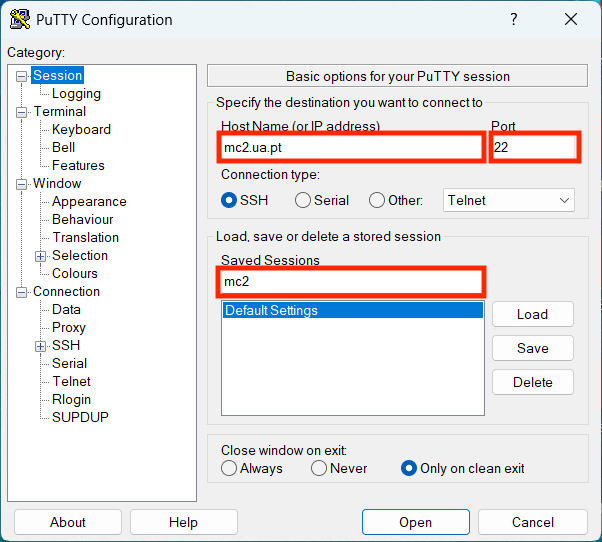
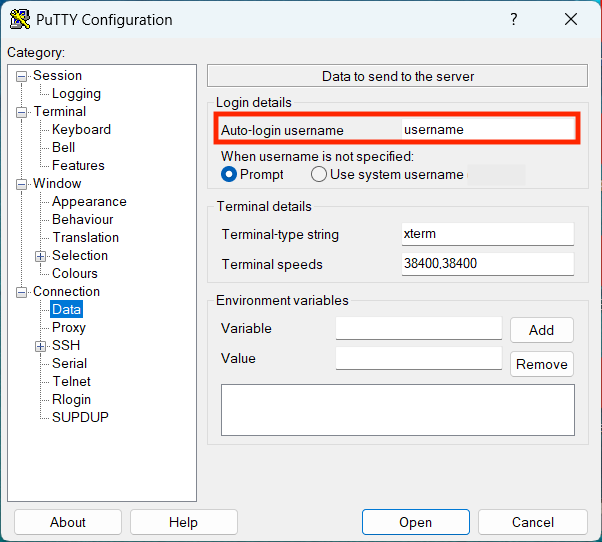
Go to Connection > Data, and enter the user name that you want to use in the Auto-login username text box.
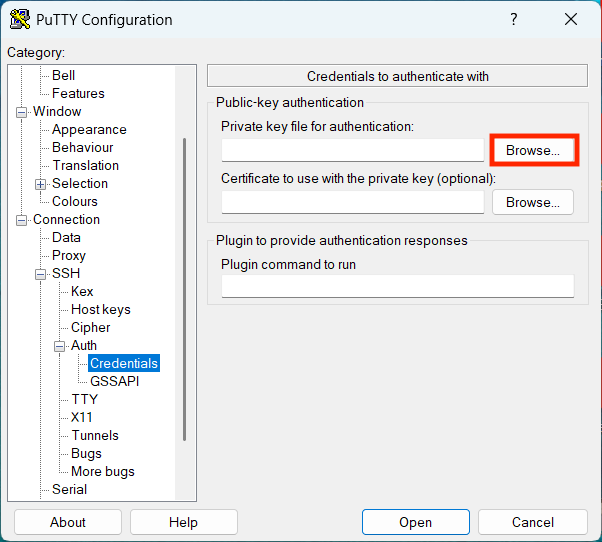
Go to Connection > SSH > Auth > Credentials, and hit the browse
button next to Private key file for authentication. Find and load your private key
(C:\Users\<username>\.ssh\id_ed25519.ppk).
Go back to Session, make sure that there is a session name in the Saved Sessions text box (for example mc2), and finally click the Save button.
You are now ready to open your first SSH session to mc2 - Simply double-click the mc2 session in the Saved Sessions list, or select the session and hit the Open button.
On the first connection, you will be asked whether you trust and want to continue connecting to mc2.ua.pt (which SSH does not recognize yet). Read the first paragraphs of Step 3 First login to mc2 and follow the instructions about how to answer this question.
Once you are in, proceed immediately to setting up a strong password below.
3.2. Setup a strong password
Passwords on mc2 have to comply with a few quality requirements:
- No more that 4 characters of an old password are allowed on a new one (if you are renewing your credentials);
- They should have at least 12 characters;
- Should contain at least one upper-case letter, one lower-case, one number, one special character (.:,&%$#@...);
- It cannot resemble your name or your username.
When asked to setup your password, enter your secret twice:
New password: ***************** [Enter]
Retype new password: ***************** [Enter]
After that, you are all set and ready to access mc2 via SSH.
3.3. Setup a SSH configuration file (optional)
Linux/macOS and Powershell users will make their life easier by setting up a SSH
configuration file. In that file users can define mc2 as
an alias to mc2.ua.pt, as well as instruct SSH for the location of the
private key. With that, when we want to connect to the server, all we
have to do is to type ssh mc2 [Enter] on the command line.
Below we describe a simple procedure to setup a SSH config file that
defines an alias (mc2) to mini compute cluster:
Edit (or create if needed) the ~./ssh/config file on your local computer.
Add the text below to configure an aliased connection to mini compute cluster:
Host mc2                                     # Host alias
    HostName=mc2.ua.pt                       # Hostname or IP address
    User=<username>                          # Username
    IdentityFile=~/.ssh/id_ed25519_mylaptop  # Private key
where <username> should be replaced by your user name. Save your
configuration, and protect it with appropriate permissions. On linux:
user@client:~$ chmod 600 ~/.ssh/config
Or if you are a PowerShell user (MS Windows):
C:\> icacls $HOME\.ssh\config /inheritance:r
C:\> icacls $HOME\.ssh\config /grant:r "$($env:USERNAME):R"
C:\> icacls $HOME\.ssh\config /grant:r "SYSTEM:R"
and test the connection to mc2 by issuing the following command:
user@client:~$ ssh mc2
user@hsn:~$ ls -la
drwx------.  2 user user   14 Mar  2 14:12 .
drwx------. 27 root root   37 Mar  2 14:12 ..
-rw-r--r--.  1 user user  400 Jan 30 08:40 WELCOME
You can also use the mc2 alias on scp commands, for example:
user@client:~$ scp filename.txt mc2:tmp/myfolder
which is effectively equivalent to:
user@client:~$ scp -i ~/.ssh/id_ed25519_mylaptop filename.txt username@mc2.ua.pt:tmp/myfolder
4. Register an OTP generating device
Access to JupyterHub requires an authentication with three fields, namely username, password, OTP (One-Time Passcode).
mc2 implements the Google Authenticator PAM module to bind a personal device to the mc2 authentication stack. Both the login server and the device generate synchronized 6-digit OTPs every 30 seconds, derived exclusively from a shared 32-byte secret code known only to the server and the device.
4.1. Install an OTP app on your device
Start by preparing your device and install an authentication app. All you need is a RFC 6238 compliant software. For mobiles (iPhone, Android) top choices are
- Microsoft Authenticator
- Google Authenticator
- FreeOTP
- Authy
For your desktop/laptop:
- OTPKEY Authenticator (Windows)
- OTP Manager (Windows)
- QuickOTP Authenticator Passkey (MacOS with GUI)
oathtool(CLI app for Linux and MacOS via Homebrew)cotp(CLI app for Linux and MacOS via Homebrew)
4.2. Configure a secret code on mc2
NOTE1: This procedure works only on a terminal with light background and dark characters.
NOTE2: The Secret Key (or its QR-code) generated below should never be transmitted - Any device with it will generate the same and unique sequence of OTPs which can be used for authentication.
Login to mc2 and execute:
user@hsn:~$ google-authenticator
You will be asked a series of questions, which should be answers with an yes.
-
Use time-based tokens? Use Time-based OTP (RFC 6238). The only functioning answer is yes.
-
Update
~/.google_authenticator? Save the secret. The only functioning answer is yes. -
Disallow multiple uses of the same token? Prevents replay attacks.
-
Allow +/-1 token time window? Tolerates minor clock skew.
-
Enable rate-limiting? 3 authentication attempts per 30s. Prevent brute force attacks
Alternatively, you can provide appropriate answers in advance by executing:
user@hsn:~$ google-authenticator --time-based --disallow-reuse --force --rate-limit=3 --rate-time=30 --window-size=3 --qr-mode=utf8
You will finally be provided with a Secret Key, along with a corresponding QR-code on the screen:
user@hsn:~$ google-authenticator --time-based --disallow-reuse --force --rate-limit=3 --rate-time=30 --window-size=3 --qr-mode=utf8

  █▀▀▀▀▀█  █ ▄▀██▀▀▄█▀▄▀▀▄▄█ ▄  █▀▀▀▀▀█
  █ ███ █  ▄ ▀▀▀█▀█▀▄▄▀ █▄  ▄█▀ █ ███ █
  █ ▀▀▀ █ ▄▄ █▄█ ▀█ █▄  ▄▀▄▀███ █ ▀▀▀ █
  ▀▀▀▀▀▀▀ ▀▄█ █▄█ ▀▄█▄▀▄▀▄▀ ▀ ▀ ▀▀▀▀▀▀▀
  ▀▄ █▄█▀ █ ▀▄ █▄▄ ▄▄ █▀█▄▄ ▀█▄▀▄█    ▄
  ▄ █▄▀█▀█▄█▀  ▀ ▄█▀█▀▄▄  █▄ ▄██▄▀█▀ ▀▀
  ▀▄█▄ █▀▄█▀ ▄██ ▄▀█▄▄▄█▄███▄ █▄█  ▄█▀▀
  █▄  ▄ ▀ █▄▀▀▄█▀▄▄▄▀ ██▀██ ▄▄▀▄▀▄█ ▀▄▀
     █▀ ▀ ▀▄▀▄▄▄▀▄▄▀█   █ ▄█▄▄▄▀▀▄▄ ▀██
  █▀ ▀ █▀ ▄▄█▄▀ █▀▀█▀▄ █  ▀▀█▄ ▀▄█▀ █▀█
  █▄ ██▀▀█▀█ ▀▀▀ █▄   ▀▄ ▀▄▀▀ ▄ ██▀▄▀▄
  ▄▀█▄██▀▀█ █ ██▄▄█ ▄▀▀▄█ ▄█ ▄▄ ██▀▀ █▀
   ▄▀▀▀▄▀▄▀█▀▀█▄▄███ █▄▄▄▄█ ▄▄ █▀▀ █ ▄█
  ▀▄▄██▄▀█ ▄  ▄▀█ ██▄▄▀▄▀█▄▄█ ▄▄▀▀ █ ▄█
  ▀▀ ▀ ▀▀▀█  ▄▀▀██▄█  ▀█▀▄█▄▄ █▀█▀ ▀▀ ▀
  █▀▀▀▀▀█ ▄ █▄  ▄▄ ▄▀▄ █▀ ▄ ▀▀█ ▀ █▀██▀
  █ ███ █ ▄ █▄█▄█▀█▄▄ ▄▀▀▄▄▄█ █▀▀██   ▀
  █ ▀▀▀ █  ▄▄▀██  ▀  ▀▀▄ ▄█▄▀▀▀  ▄  ▀▀▀
  ▀▀▀▀▀▀▀ ▀▀ ▀▀ ▀  ▀▀  ▀  ▀▀ ▀▀▀ ▀▀ ▀▀▀

Your new secret key is: MUDAI8GHT7DFE09KLW57G3K8UBTWG2UC
Enter code from app (-1 to skip): <Enter 6-digit OTOP code from device>
Code confirmed
Your emergency scratch codes are:
...
All you have to do now, is to launch the authentication app on your personal device, add a new connection, give it a name (for instance mc2), insert your user name, type in the 32-byte secret key or scan it from the QR-code.
Your device will start generating 6-digit OTPs, which you should use to finish the registration by entering one such OTP on the terminal prompt. This will certify mc2 that your device has been registered, and that OTPs are the same on both ends.
If something goes wrong, you can always recover your Secret Key for later use.
Simply look for it in ~/.google_authenticator:
user@hsn:~$ head ~/.google_authenticator
or print it on the screen in the form of a QR-code:
user@hsn:~$ qr-code
The google-authenticator app also generates five “emergency scratch codes”.
These are single-use 8-digit backup login codes, accepted in place of a normal
OTP code, and can be used, for instance, when:
- your phone is lost or broken
- the authenticator app was wiped
- time synchronization problems prevent OTP generation
- you cannot access your hardware token
Finally, test your credentials by visiting the JupyterHub web server and login.